
Watch the video tutorial on YouTube
- By clicking the “Import” button, which is located under “Administration” menu (Figure 4), data transfer section will appear.
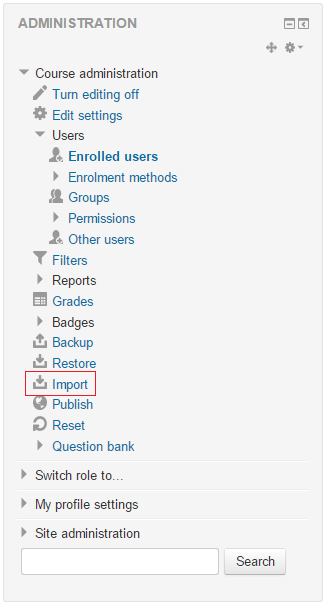 Figure 4
 - In the “Import” page (Figure 5), current courses of the system are listed. After selecting the related radio button, which is located near to the title of the course to be imported, and clicking “Continue” button, a page that consists sections of the course to be selected (“Backup settings” page) will appear.
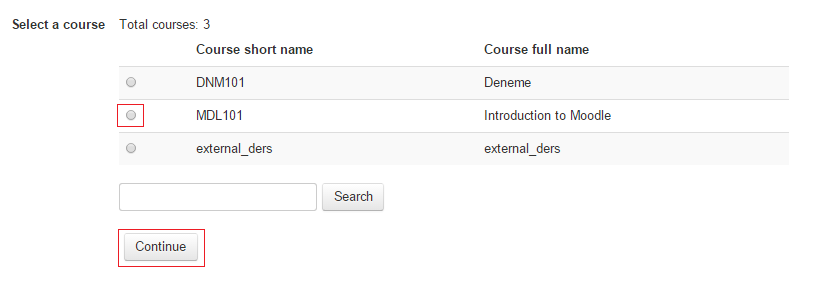 Figure 5
 - “Backup settings” page (Figure 6) shows areas of a course to be imported. After marking the sections that are to be imported in the previous (5th) step, “Next” button is clicked and other copying options will appear.
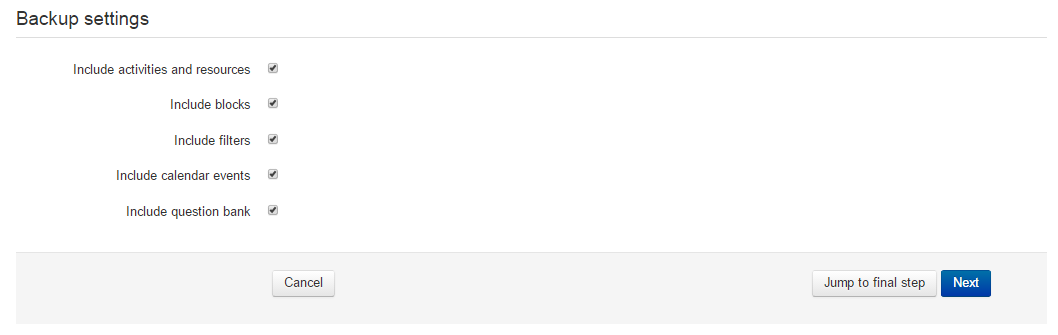 Figure 6
 - After marking the sections that are to be imported of a certain course, “Next” button is clicked and a page (Figure 7) that contains information about the sections to be imported will appear.
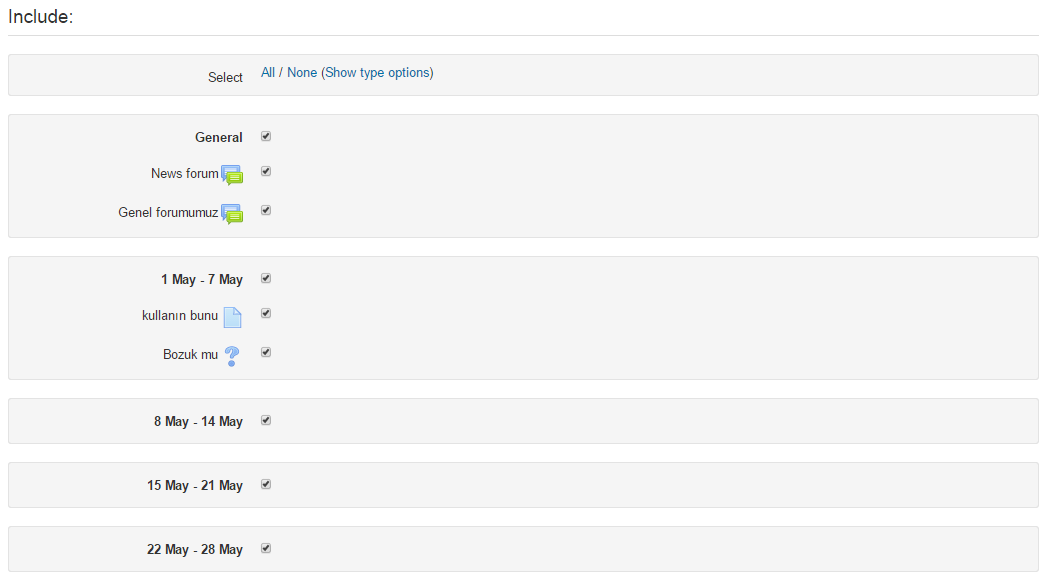 Figure 7
 - After completing these steps, a review page that contains information about the course (showing which sections will be imported and which will not) will appear. After confirming this information, “Perform import” button is clicked and the last step is completed (Figure 8).
 Figure 8
 - The message that is indicated in Figure 9 tells that the process is completed successfully.
 Figure 9
 - The data of a past course is now imported to a current and is ready to be used.
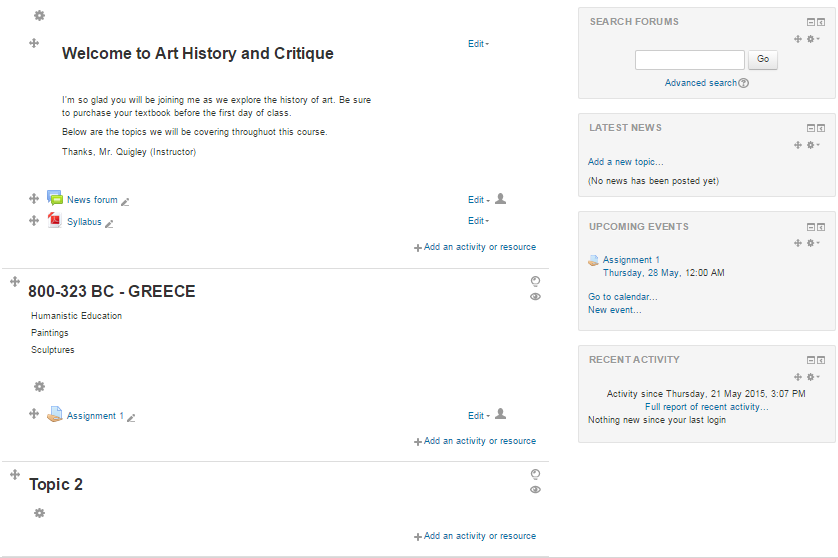 Figure 10