
- In order to activate editing tools, “Turn editing on” should be selected in the administration panel after logging into the Moodle system (Figure 1). Administration panel is located on the left bottom corner of the page.
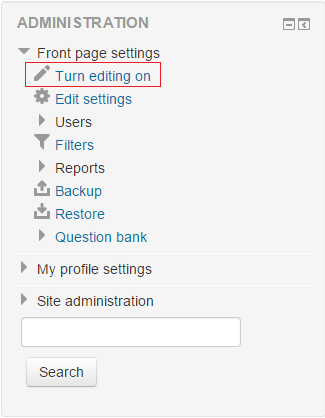 Figure 1
 - At the course page, “+ Add an activity or resource” link that is on the top of the page should be clicked. Link on top of the page
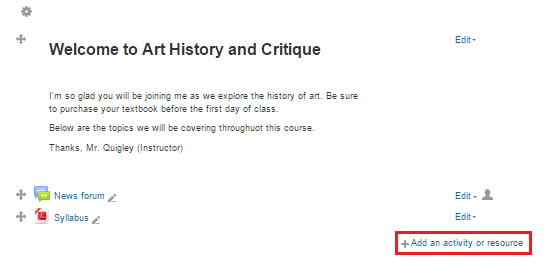 Figure 2 Link that is at the bottom of the related subject.
 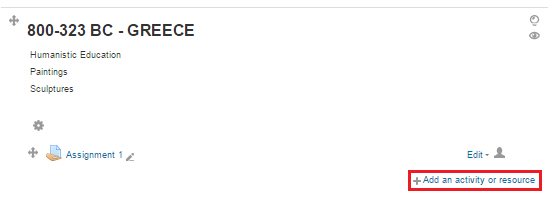 Figure 3
 - “URL” link, which is located on the left side of the opening window (Figure 4), is selected and “Add” button is clicked. (Figure 4)
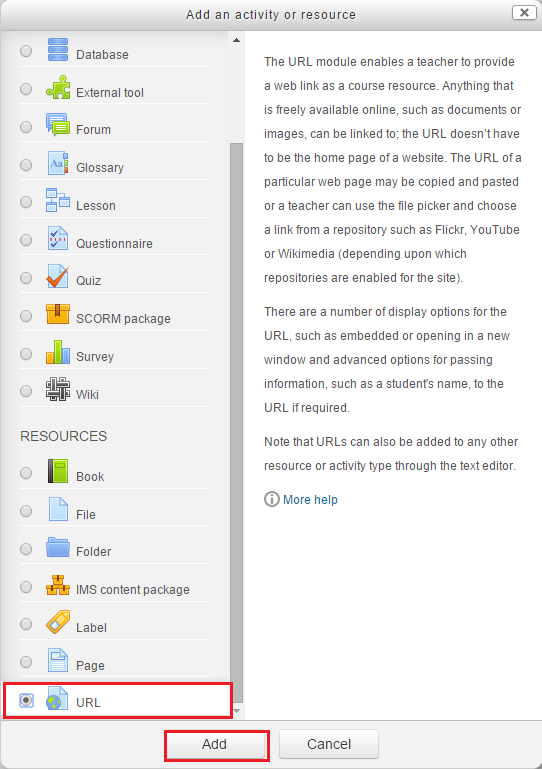 Figure 4
 - Then enter the link name, paste the dropbox link you copied on the "External URL" field and click "Save and display" or "Save and return to course". (Figure 5)
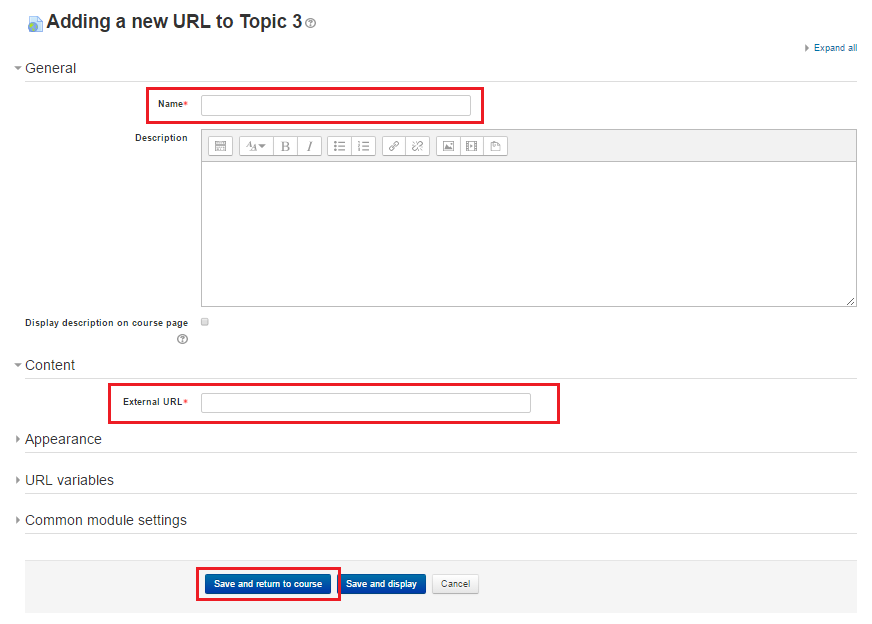 Figure 5
 - In order to copy dropbox link of a file, in dropbox click "link" button beside the file. (Figure 6)
 Figure 6
 - Then copy the URL on the page. (Figure 7)
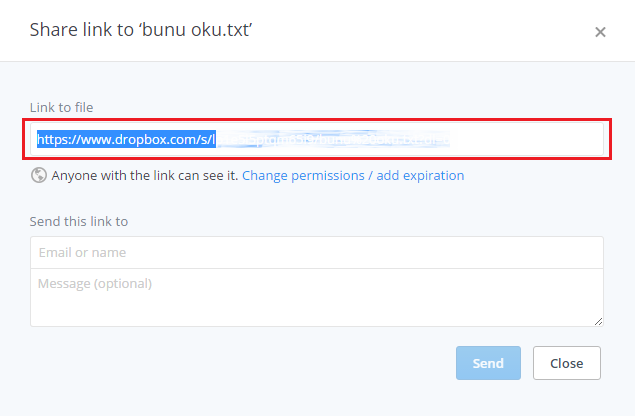 Figure 7
How to Add File From Dropbox?
In order to activate editing tools, “Turn editing on” should be selected in the administration panel after logging into the Moodle system (Figure 1).…