
Watch the video tutorial on YouTube
- When the course page is opened, ”Enrolled Users” link should be selected by following “Course Administration->Users->Enrolled Users” path. “Course Administration” dropdown list is under the “Administration” menu that is located on the left bottom corner of the page. (Figure 1)
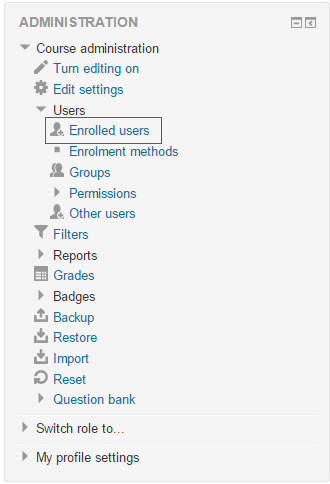 Figure 1
 - People enrolled in that course as “Student”, “Assistant”, "PS Assistant", "Grader", “Teacher” can be seen on “Enrolled Users” page. In order to enroll a new person into this course, “Enrol users” button that is on the right-top corner of the page should be clicked. (Figure 2) A "Grader" can evaluate and grade assignments. A "PS Assistant" can evaluate and grade assignments and add documents to course page. An "Assistant" can do everything a "Teacher" can do except that it can not give lecture grades to students.
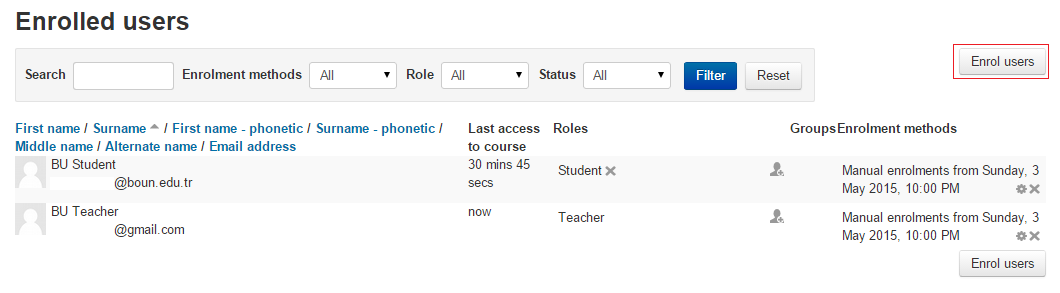 Figure 2
 - On the “Enrol Users” window (Figure 3) all users registered in the Moodle System can be seen. In order to enroll a new user in the course, type of enrollment (“Student”, “Assistant”, “Teacher”) should be selected from “Assign Roles” dropdown list. Then, the “Enrol” button in the same line with the person to be enrolled in that course should be clicked. After finishing the enrollment, by clicking the “Finish enrolling users” button, process should be finished. Newly added users can be seen in “Enrolled Users” list
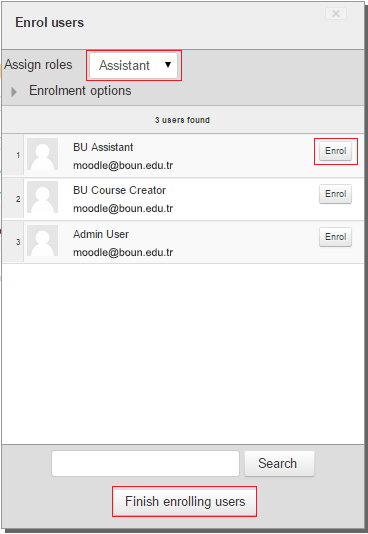 Figure 3
 - In order to remove a user's role, X button that is near to the user’s role in “Enrolled Users” list should be clicked.
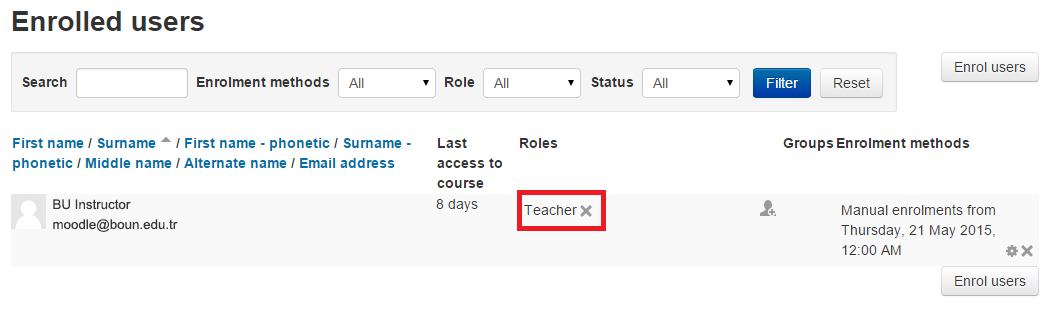 Figure 4
 - By clicking “Remove” button that is on the pop-up window, the removal process can be done.
- By clicking “Add people” button that is next to the user’s role, one of the roles that are available in the system can be selected and assigned to that user.
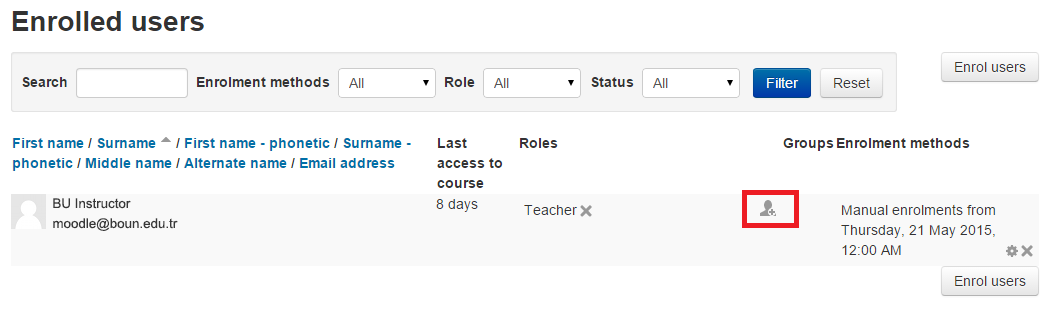 Figure 5
 - In order to give more than one role to the user, “Add people” icon should be clicked.
- In order to unenroll a user from the course, X button that is at the right-bottom corner of the user’s line in “Enrolled Users” page should be clicked.
- Then, by clicking “Continue” button on the next screen, the unenrollment process can be completed.
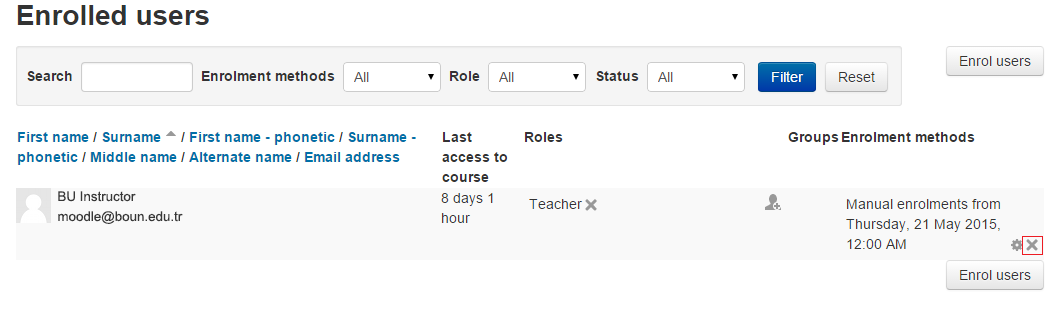 Figure 6