
- First click "Grades" under "Course Administration" (Figure 1)
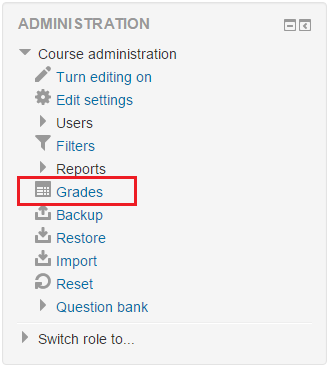 Figure 1
 - Then, change "Grading report" to "Categories and items" under "Setup" section of the top drop down selectbox (Figure 2).
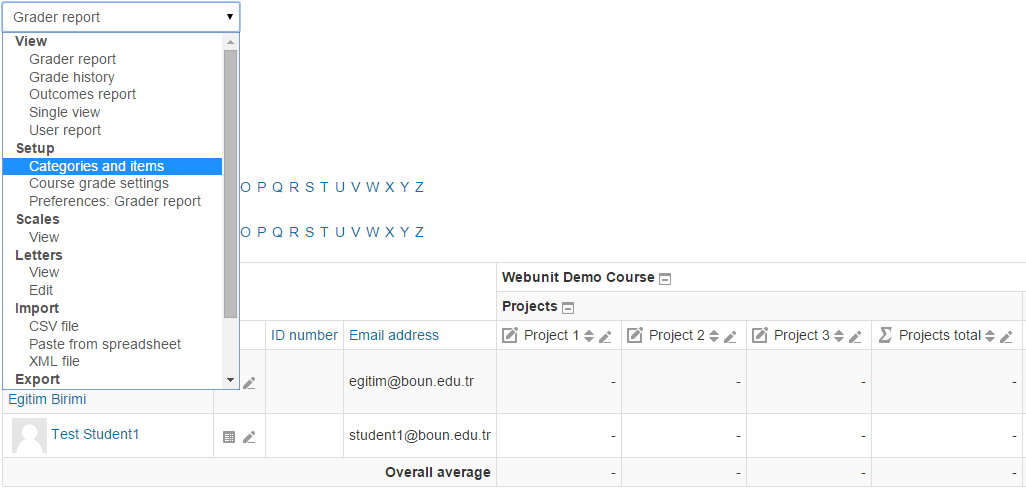 Figure 2
 - In order to change the weight of an item or category, click on the checkbox on the left side of the weight area. Then click "Save changes". (Figure 3).
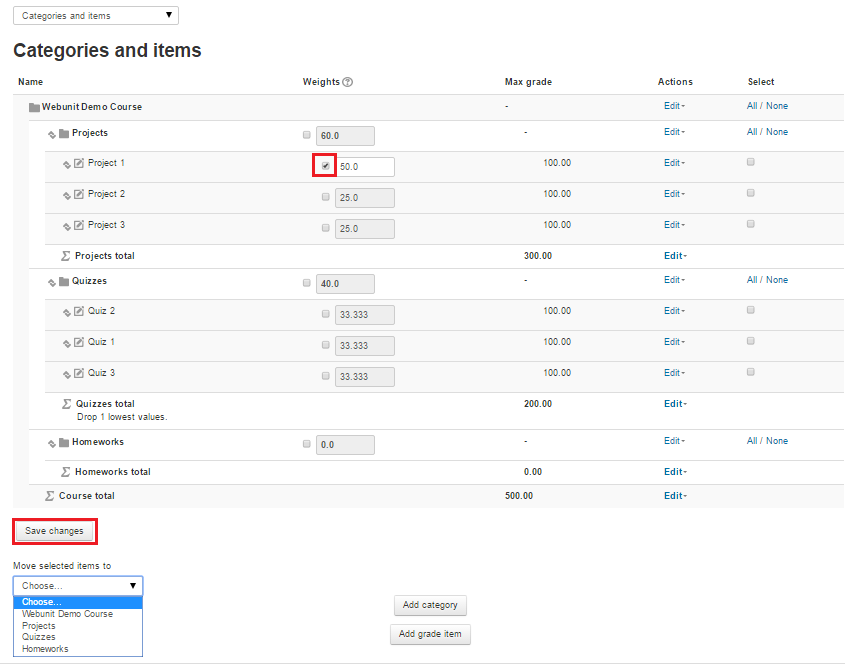 Figure 3
 - In order to change the category of an item or category, click on the checkbox at the enf of the line, under select area. And change "Move selected items to" selectbox's value to the category you wanted. Then click "Save changes". (Figure 4).
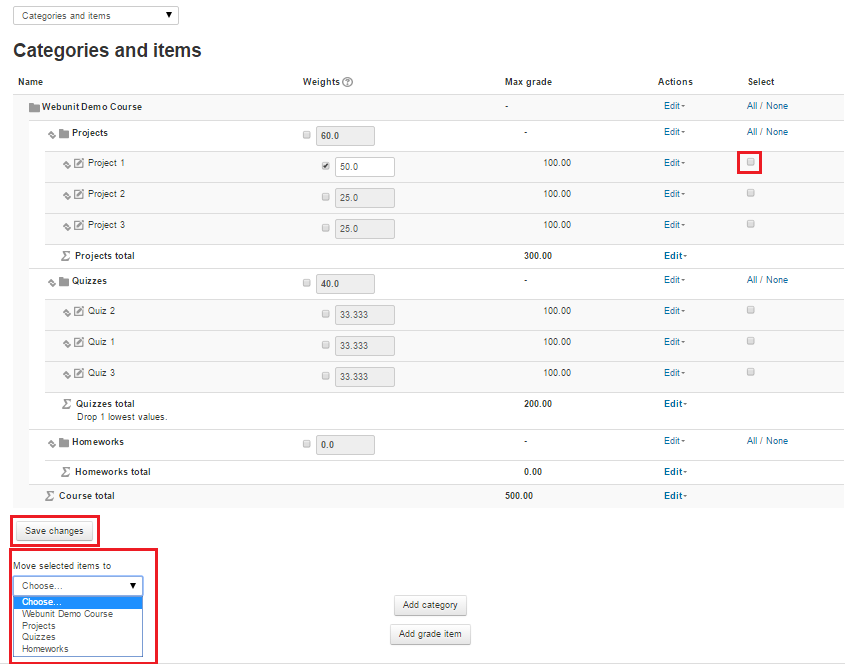 Figure 4
 - In order to edit an item or category, click on the "Edit" link on the same line. (Figure 5).
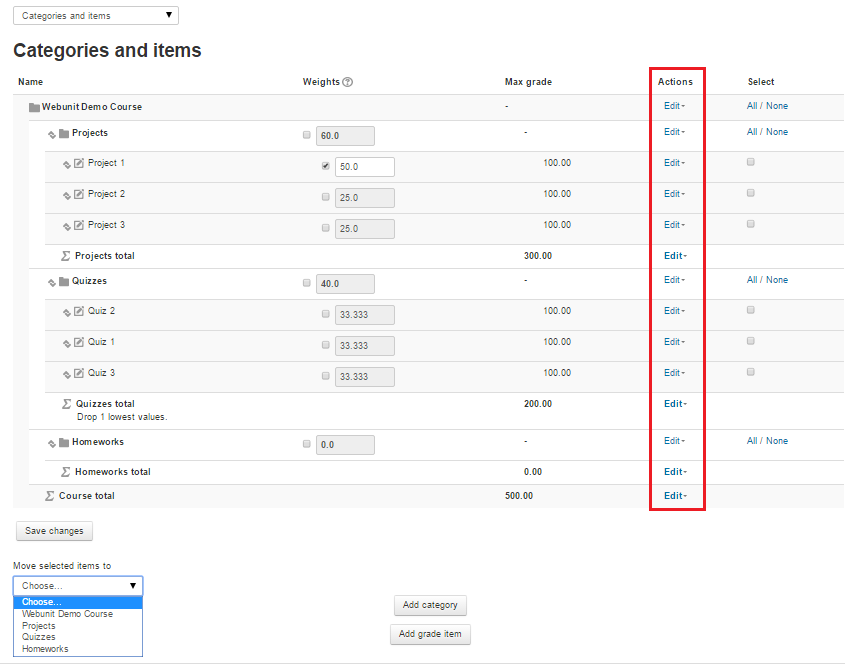 Figure 5
How to Manage Grading Categories and Items?
First click "Grades" under "Course Administration" (Figure 1) Figure 1Then, change "Grading report" to "Categories and items" under "Setup" section of…