
- First click "Grades" under "Course Administration" (Figure 1)
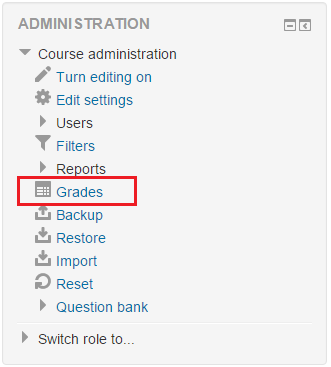 Figure 1
 - Then, change "Grading report" to "Categories and items" under "Setup" section of the top drop down selectbox (Figure 2).
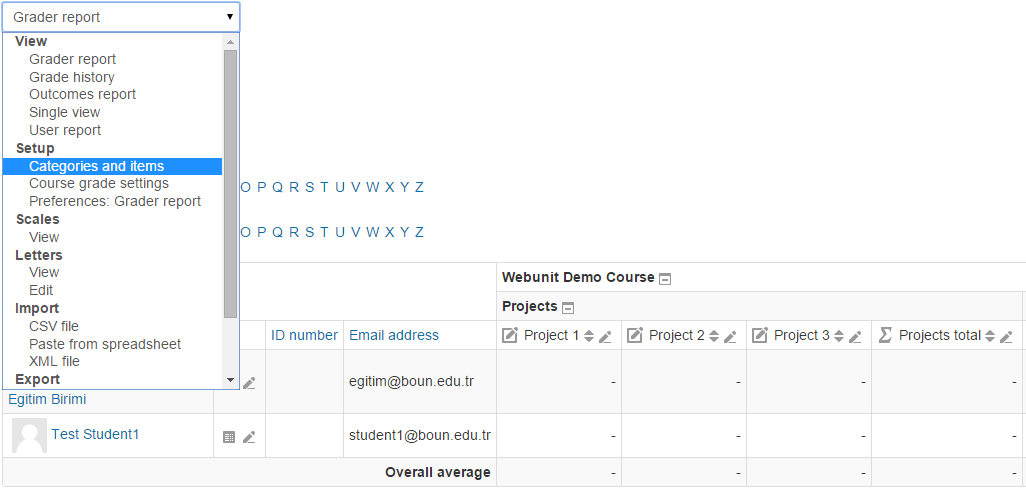 Figure 2
 - After that, click "Add Category" button (Figure 3).
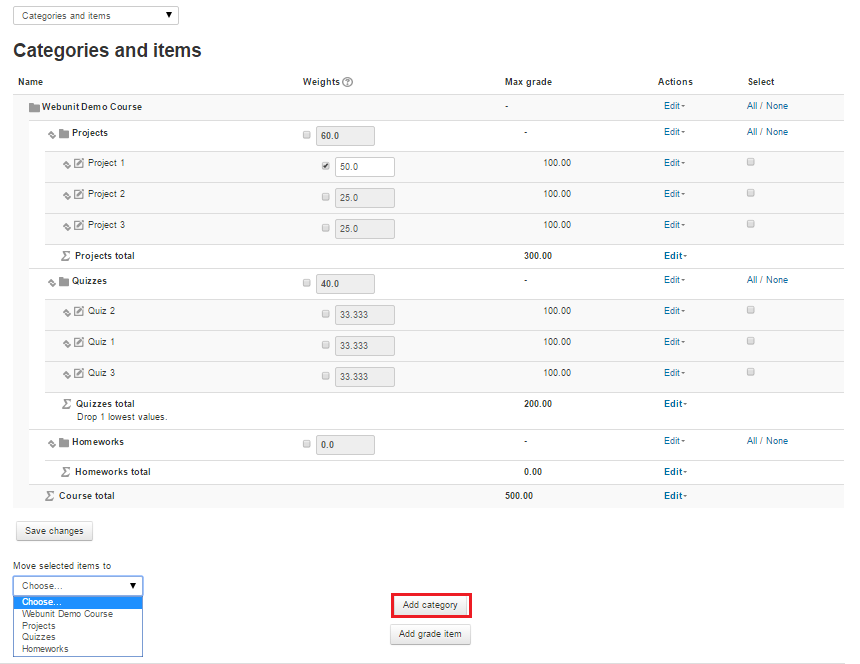 Figure 3
 - On this page enter the "Category name". Under "Parent category" section choose "Parent category" (Figure 4). Additionally you can click "Show more" and choose to exclude lowest X grades. (Figure 5)
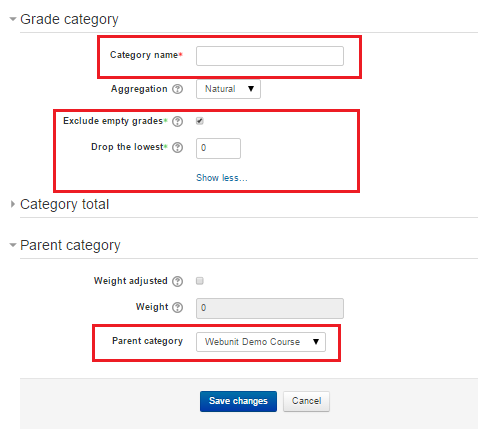 Figure 4
 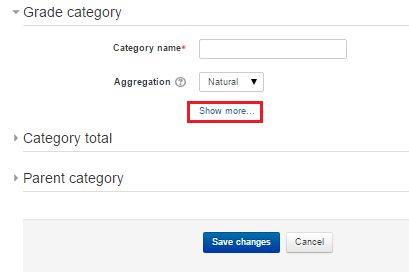 Figure 5
 - When you defined grading category, it appears on "Adding assignment" and "Adding quiz" pages under "Grade" tabs. When you are creating an assignment or quiz select the category you wanted to relate. (Figure 6)(Figure 7)
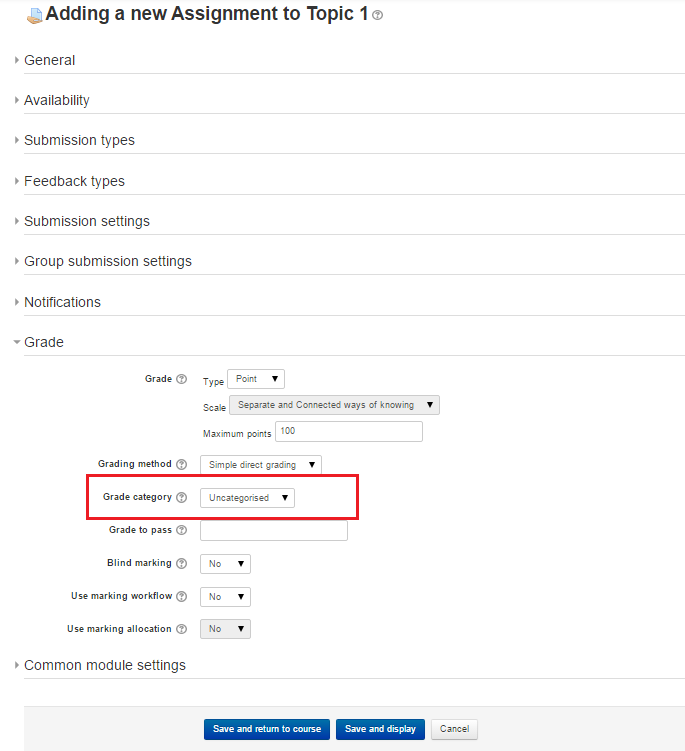 Figure 6
 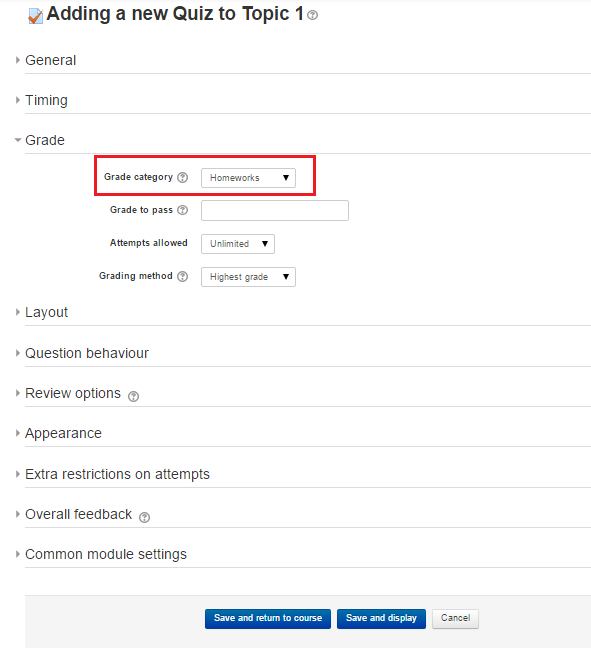 Figure 7
How to Define Grading Categories?
First click "Grades" under "Course Administration" (Figure 1) Figure 1Then, change "Grading report" to "Categories and items" under "Setup" section of…