
- In order to activate editing tools, “Turn editing on” should be selected in the administration panel after logging into the Moodle system (Figure 1). Administration panel is located on the left bottom corner of the page.
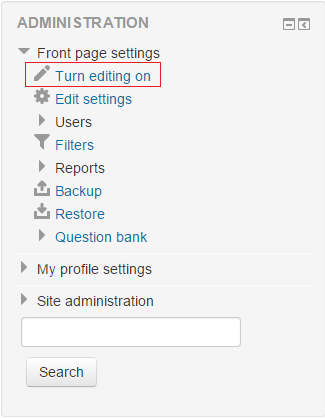 Figure 1
 - “+ Add an activity or resource” link, which is located on top of the page of the course or below the related week or topic is selected (Figure 2 and Figure 3). Link on top of the page
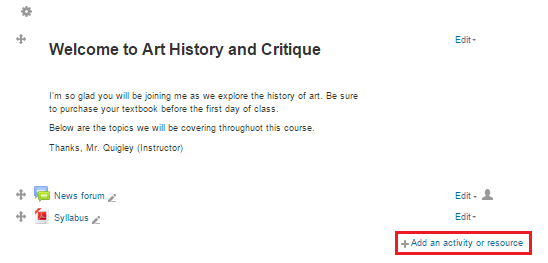 Figure 2 Link below of a topic
 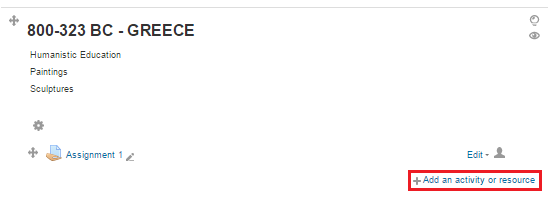 Figure 3 PS: If no date is specified for the assignment, link on top of the page may be used.
 - “Quiz” link, which is located on the left side of the opening window (Figure 4), is selected and “Add” button is clicked. (Figure 4)
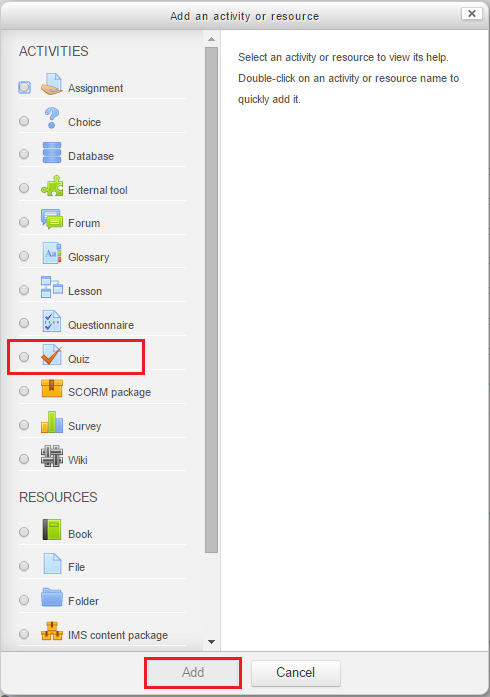 Figure 4
 - Then enter the quiz name and click "Save and display" (Figure 5)
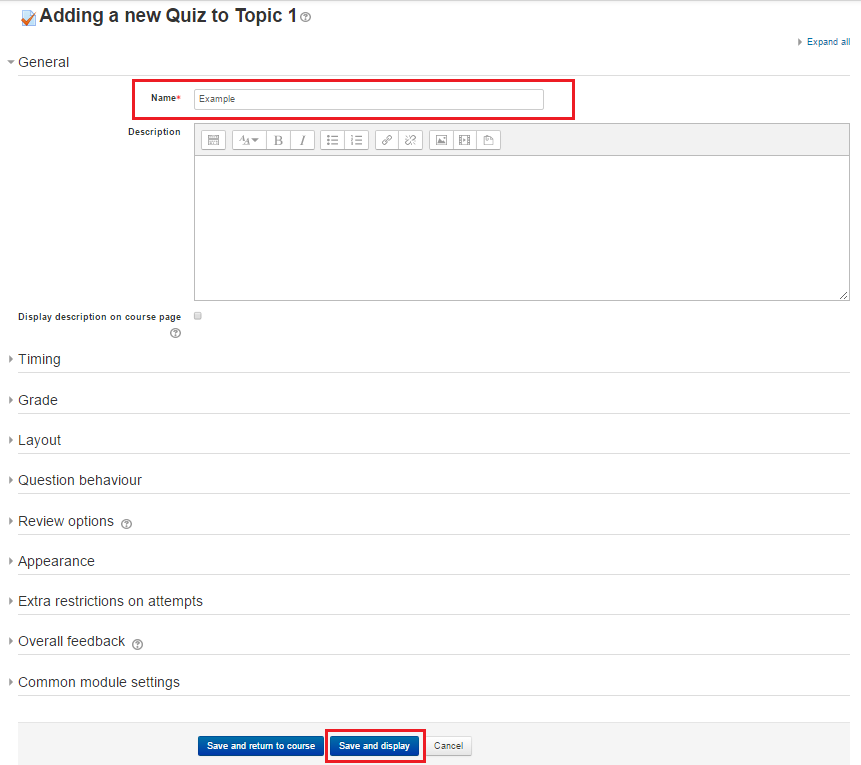 Figure 5
 - Then click "Edit quiz" button (Figure 6)
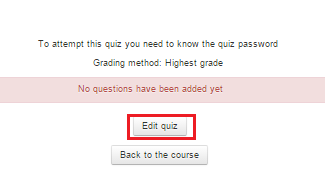 Figure 6
 - Click "Add" link to add questions. Additionally you can decide weather the questions will be shuffled. (Figure 7)
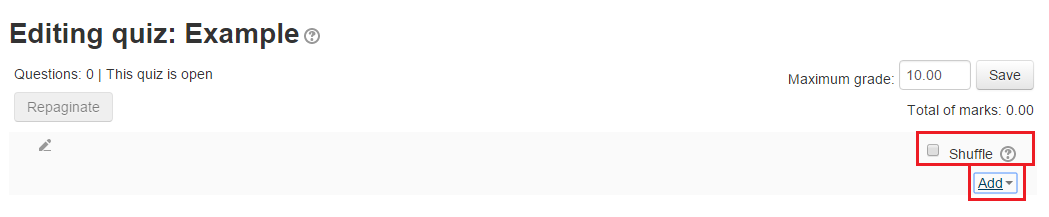 Figure 7
 - Here you can create a new question, choose a question from the question bank or you can add random questions from a category in the question bank. (Figure 8) (Figure 9)
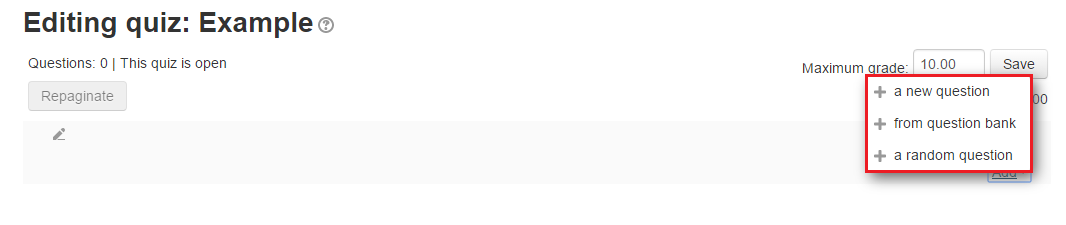 Figure 8
 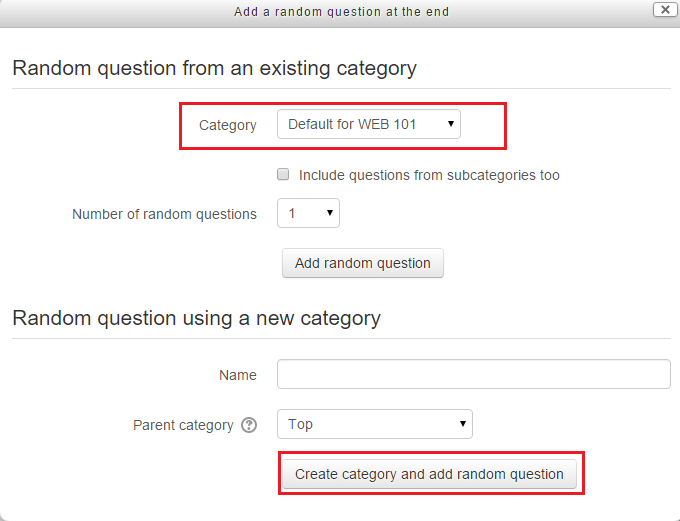 Figure 9
How to Create a Quiz?
In order to activate editing tools, “Turn editing on” should be selected in the administration panel after logging into the Moodle system (Figure 1).…