
Watch the video tutorial on YouTube
- The assignment that is to be graded should be clicked in the course page in order to display “Grading Summary“ (Figure 1).
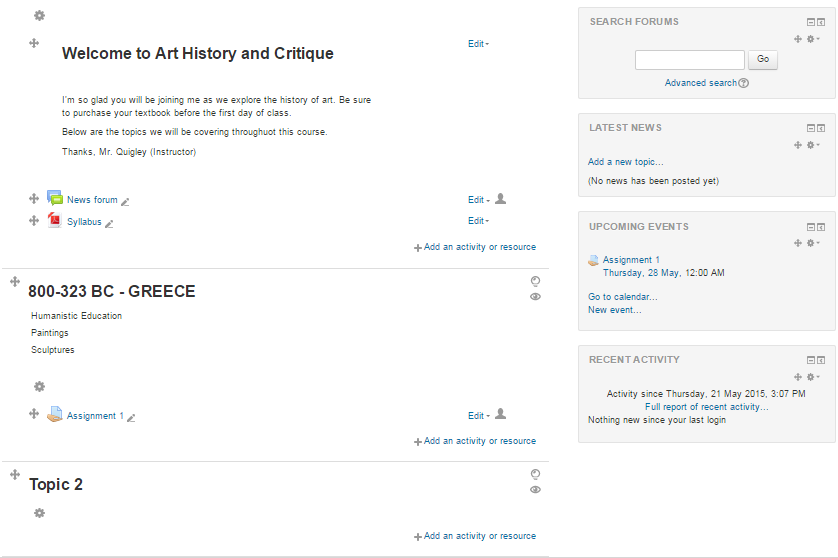 Figure 1
 - “Grading Summary” page (Figure 2) shows how many students submitted their assignments and how many assignments need to be graded. “View/grade all submissions” button should be clicked to access to list of people who submitted their assignment.
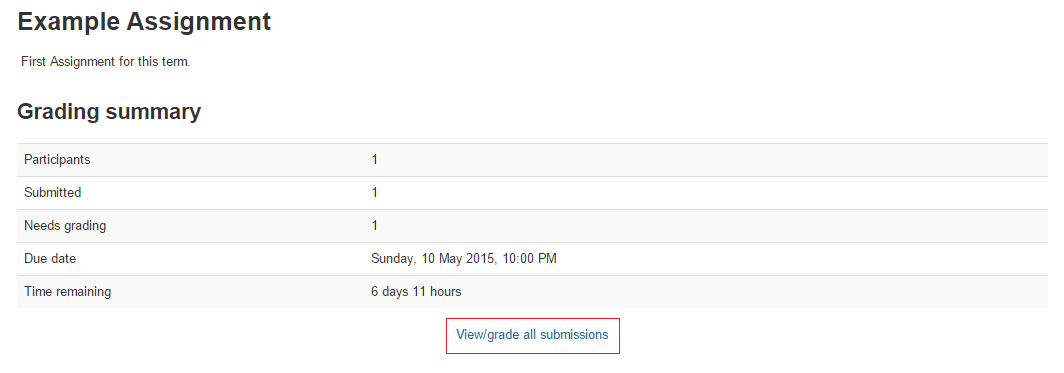 Figure 2
 - Assignment status of the people for assignment is shown in “Status” column. “Edit” button that is in the same row with user name should be clicked. After that, “Grade” button should be clicked to reach grading page of the user.
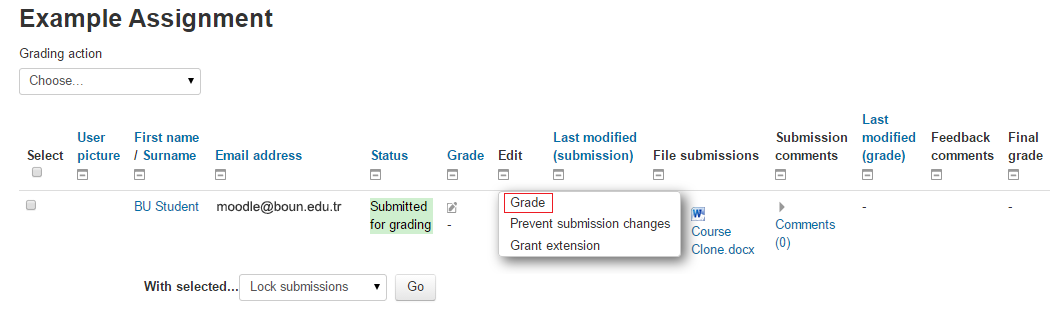 Figure 3
 - At the top of the grading page, submitting status is shown. At the bottom of the page, “Grade” from can be displayed (Figure 4). After finishing grading and feedback processes “Save Changes” button should be clicked in order to complete process.
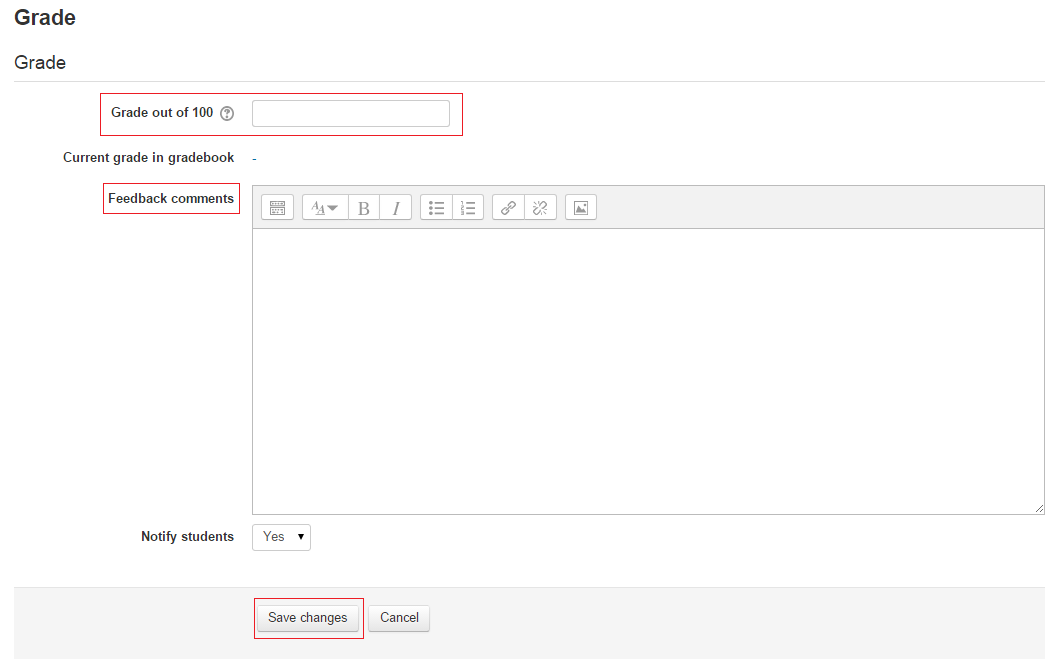 Figure 4
 - Result Screen:
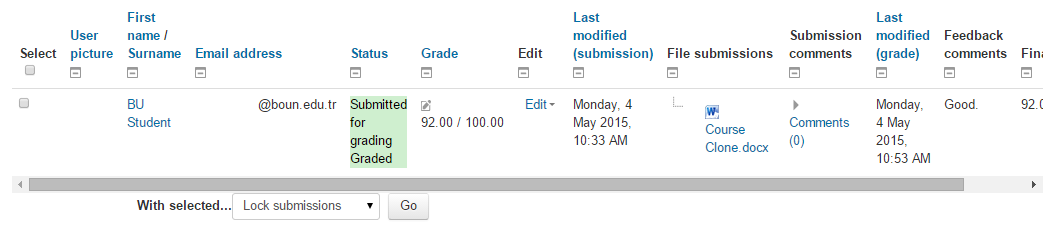 Figure 5